Best Tablet for Drawing in 2026: Pen Pads vs Pen Displays
Five drawing tablets from Wacom, Huion and XP-Pen, from a simple pen tablet to a premium pen display, compared on manufacturer specs and expert recommendations.
25 products compared · Research-based · Affiliate links
We earn a commission from qualifying purchases made through our links, at no extra cost to you. It never decides our picks. How we make money
Which one should you buy?
Our picks by what matters to you · details below ↓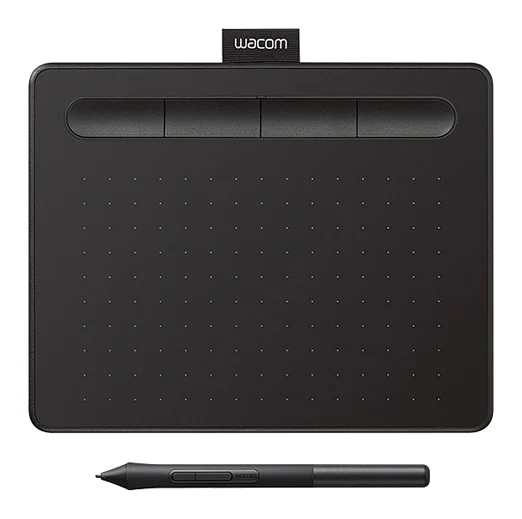
Best for: Beginners seeking affordable, portable digital drawing
Check price on Amazon- Best ValueHuion Kamvas 13 Gen 3Best for: Budget-conscious artists wanting a pen displayCheck price
- Best BudgetXP-Pen Artist 13.3 ProBest for: Artists prioritizing features at low priceCheck price
- Also GreatWacom Intuos Pro MediumBest for: Advanced artists wanting wireless tablet freedomCheck price
- Premium PickWacom Cintiq 16Best for: Professionals needing premium display color accuracyCheck price
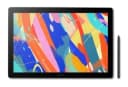
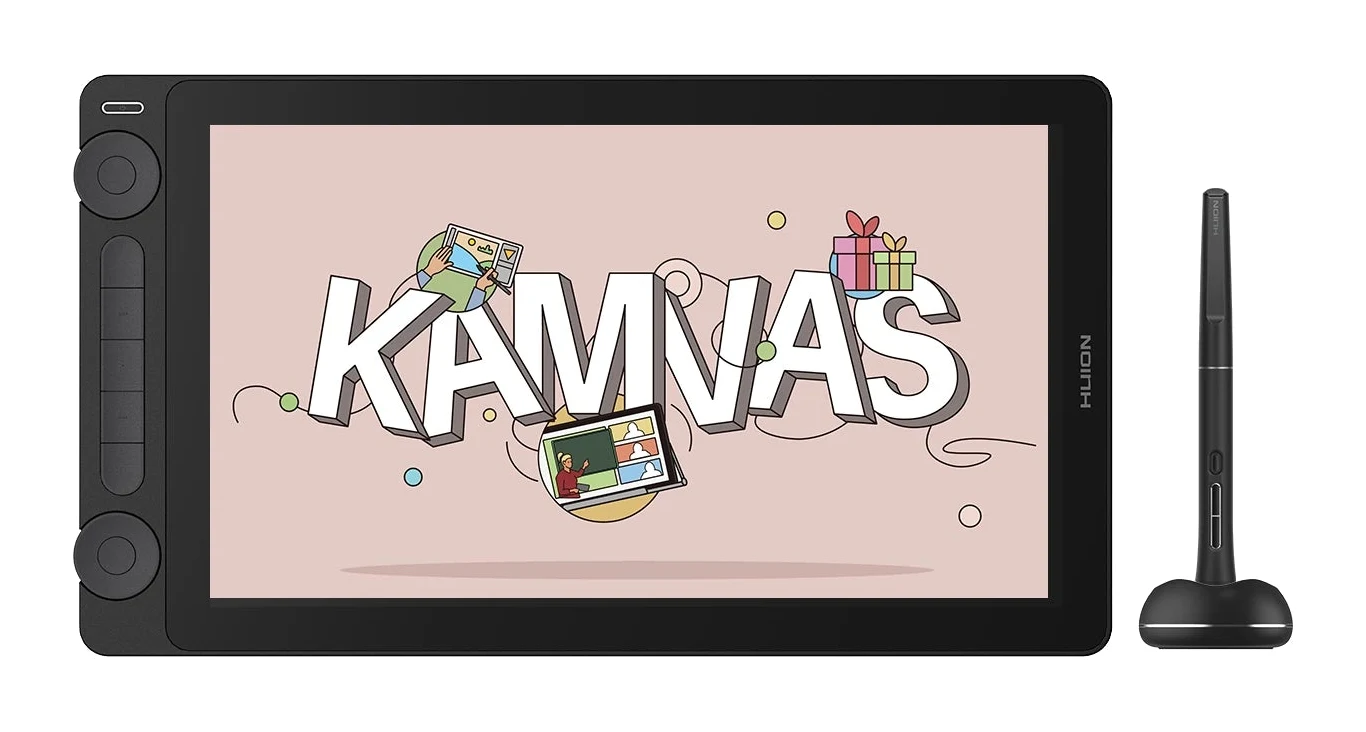
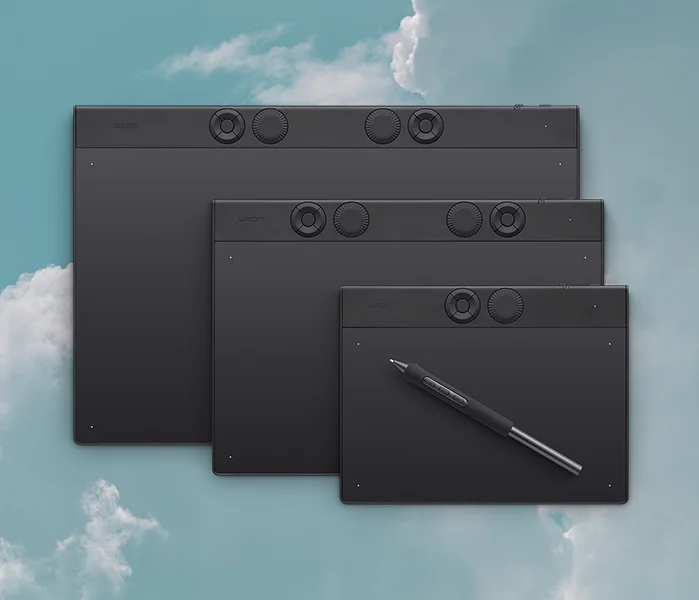
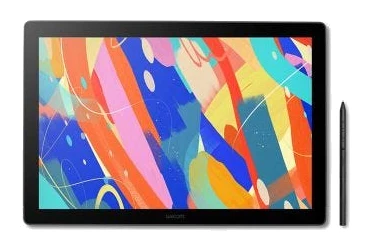
Finding the best tablet for drawing starts with one big choice: a pen tablet that you draw on while watching your monitor, or a pen display that lets you draw directly on a screen. Pen tablets are slimmer and simpler. Pen displays feel closer to paper but add a screen, cables and weight. This guide covers both types, from a beginner-friendly Wacom Intuos Small to the premium Wacom Cintiq 16.
This guide is research-based, drawing on manufacturer specs and independent expert recommendations rather than our own use of the products. You will find a quick comparison table, a section on each pick, advice on choosing, and a short FAQ.
Best Drawing Tablets at a Glance
| Pick | Label | Type | Pressure levels | Expert guides recommending | Buy |
|---|---|---|---|---|---|
| Wacom Intuos Small | Best Overall | Pen tablet (no screen) | 4,096 | 6 | Check price |
| Huion Kamvas 13 Gen 3 | Best Value | Pen display, 13.3 inches | 16,384 | 8 | Check price |
| XP-Pen Artist 13.3 Pro | Best Budget | Pen display, 13.3 inches | 8,192 | 7 | Check price |
| Wacom Intuos Pro Medium | Also Great | Pen tablet (no screen) | 8,192 | 7 | Check price |
| Wacom Cintiq 16 | Premium Pick | Pen display, 16 inches | 8,192 | 8 | Check price |
Best Tablet for Drawing Overall: Wacom Intuos Small
Best for: Beginners seeking affordable, portable digital drawing
The Intuos Small earned Best Overall by combining the top value for money with a battery-free pen, broad device compatibility and a portable body. It suits beginners and anyone who wants a simple, affordable entry into digital drawing.
Read our full Wacom Intuos Small review →- Stylus pressure levels
- 4096
- Weight
- 230 g (8.1 oz)
- Resolution
- 2540 lpi
- Active Area
- 6.0 x 3.7 in
- Pen Resolution
- 2540 lpi
- Pen Pressure Levels
- 4096
Reasons to buy
- 4,096 pressure levels for precise, natural drawing control
- Battery-free EMR pen needs no charging
- 4 customizable ExpressKeys for quick shortcuts
- Slim 8.8mm, 230 g body is easy to carry
- Works with Windows, Mac, Android and ChromeOS
Reasons to avoid
- Small 6.0 x 3.7 in active area limits large strokes
- Pen tablet only, with no built-in display
- Lower pressure resolution than rivals with 8,192 levels
- Pocket Lint
- 8.0
- AppleInsider
- 9.0
The Intuos Small takes Best Overall because it combines the strongest value for money in this group with a simple, flexible setup. Its pen is battery-free and uses electromagnetic resonance technology, so there is nothing to charge. It offers 4,096 pressure levels, which is enough for natural-feeling control when you are learning. It also works with Windows, Mac, Android and ChromeOS.
Keep reading about Wacom Intuos Small
The body is 8.8mm thin and weighs 230 g, so it slips into a bag easily. Four customizable ExpressKeys put shortcuts such as undo or brush size under your fingers. Six independent expert guides recommend it.
The main trade-off is size. The active area is 6.0 x 3.7 in, which can feel cramped if you like big arm-driven strokes. It is also a pen tablet only, so you look at your monitor while you draw. That takes some getting used to. It has fewer pressure levels than rivals that offer 8,192. It suits beginners, hobbyists and anyone who wants a low-risk way into digital drawing.
Best Value Pen Display: Huion Kamvas 13 Gen 3
Best for: Budget-conscious artists wanting a pen display
The Kamvas 13 Gen 3 is Best Value because it brings a full pen display with high pressure sensitivity and good color coverage into the budget tier. It has the most expert recommendations among budget picks, which supports its place.
- Stylus pressure levels
- 16384
- Weight
- 865 g
- Resolution
- 1920 x 1080 (FHD)
- Active Area
- 293.8 x 165.2 mm
- Pen Pressure Levels
- 16384 levels
- Dimensions
- 361.21 x 202.77 x 11.7 mm
Reasons to buy
- 16,384 pressure levels with PenTech 4.0 technology
- Anti-glare etched glass gives a paper-like drawing feel
- 99% sRGB coverage for accurate color work
- 2 dials and 5 shortcut keys speed up workflow
- Portable 13.3-inch FHD screen weighing 865 g
Reasons to avoid
- Only 1920 x 1080 resolution on the 13.3-inch panel
- 25 ms response time is slower than some rivals
- 220 nit typical brightness is modest
- MacSources
- 8.3
- Basic Tutorials
- 9.7
- GBAtemp
- 8.0
- MacHow2
- 8.1
The Kamvas 13 Gen 3 earns Best Value by putting a full pen display in the budget tier. Huion's PenTech 4.0 technology supports 16,384 pressure levels, the highest number in this roundup. The nano-etched Canvas Glass 2.0 is anti-glare and designed to give a paper-like drawing feel. Color coverage is listed at 99% sRGB and 99% Rec.709, with 90% Adobe RGB, which suits illustration and general color work.
Keep reading about Huion Kamvas 13 Gen 3
Workflow tools include 2 dial controllers and 5 programmable shortcut keys. At 865 g with a 13.3-inch screen, it is portable for a pen display. It supports ±60° tilt, and it connects over USB-C. With 8 independent expert recommendations, it has the most among the budget picks.
The trade-offs are on the screen. The panel is 1920 x 1080 at 13.3 inches, the response time is 25 ms (slower than some rivals), and typical brightness is 220 nit, which is modest in a bright room. It is a good fit for students and hobbyists who want to draw directly on a screen without moving into premium territory.
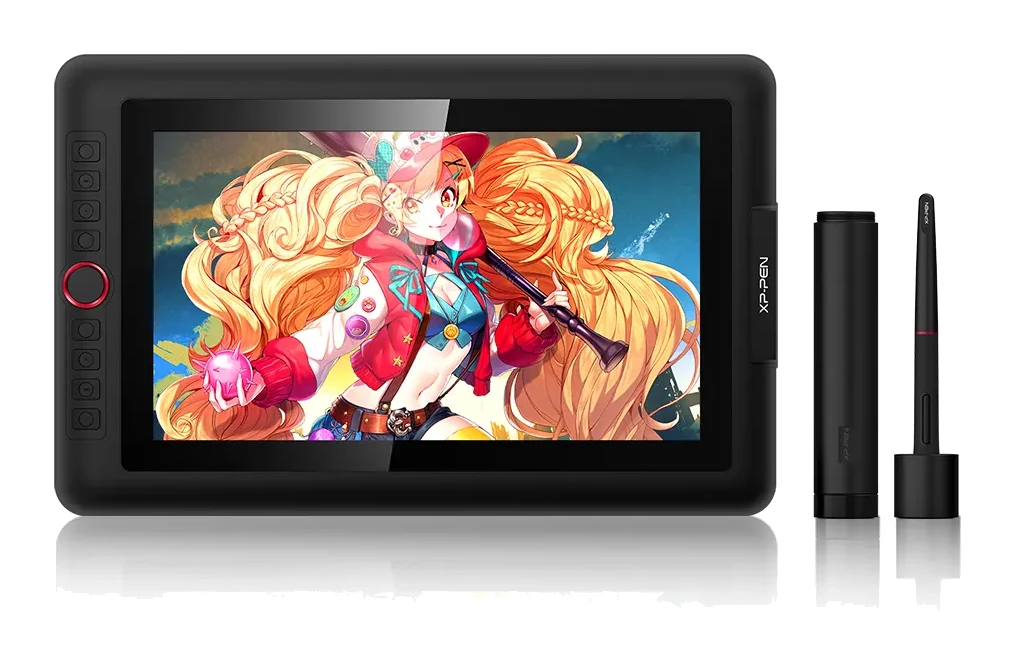
Best Budget Pick: XP-Pen Artist 13.3 Pro
Best for: Artists prioritizing features at low price
The Artist 13.3 Pro is Best Budget thanks to the highest feature set of the budget group, with a laminated screen, wide color gamut and plenty of shortcuts. It is a strong choice for those who want a feature-rich pen display at a low price tier.
Read our full XP-Pen Artist 13.3 Pro review →- Stylus pressure levels
- 8,192
- Resolution
- 1920x1080 pixels
- Pen Resolution
- 5080 LPI
- Dimensions
- 390.4mm (L) x 249.98mm (W) x 12.9mm (H)
- Display
- 13.3 inches
- Color Gamut
- 88% NTSC, 123% sRGB, 91% Adobe RGB
Reasons to buy
- Fully laminated display minimizes parallax
- 8,192 pressure levels with 60° tilt support
- 123% sRGB and 91% Adobe RGB color coverage
- 8 shortcut keys plus a red dial and roller wheel
- Battery-free PA2 stylus needs no charging
Reasons to avoid
- Larger 390 x 250 mm body than the screen size suggests
- Fewer value points than the Intuos Small
- Only 1080p resolution on the 13.3-inch display
- Nerd Techy
- 8.1
- Jabba Reviews
- 10.0
The Artist 13.3 Pro is Best Budget because it has the highest feature set in the budget group. The 13.3-inch Full HD IPS display is fully laminated, which reduces the gap between pen tip and image (parallax). An anti-glare optical film cuts reflections. The battery-free PA2 stylus supports 8,192 pressure levels and 60° tilt, which helps with shading and line variation.
Keep reading about XP-Pen Artist 13.3 Pro
Color coverage is listed at 88% NTSC, 123% sRGB and 91% Adobe RGB. Controls are generous: 8 customizable shortcut keys plus a red dial and a roller wheel. Response time is 14ms, noticeably quicker than the Kamvas 13 Gen 3. It works with Windows 7 or later, macOS X 10.10 or later, Chrome OS 88 or later and Linux, so Linux users are covered. Seven independent expert guides recommend it.
The body measures 390.4mm x 249.98mm x 12.9mm, which is larger than the 13.3-inch screen suggests. The resolution is 1080p. It also scores below the Intuos Small on value. It is best for budget-minded artists who want a laminated screen and plenty of shortcuts.
Also Great: Wacom Intuos Pro Medium
Best for: Advanced artists wanting wireless tablet freedom
The Intuos Pro Medium is Also Great for artists who want a larger, more advanced pen tablet with wireless freedom and extensive controls. It maxes out the feature set and is backed by 7 expert recommendations.
- Stylus pressure levels
- 8192
- Weight
- 411g / 14.50 oz
- Active Area
- 10.4 x 5.8 in / 263 x 148 mm
- Pen Resolution
- 5080 lpi
- Pen Pressure Levels
- 8192
- Dials
- 2 mechanical dials
Reasons to buy
- Pro Pen 3 offers 8,192 pressure levels and ±60° tilt
- 10 ExpressKeys and 2 mechanical dials for workflow
- Ultra-slim 4mm magnesium design with a 263 x 148 mm area
- USB-C or Bluetooth 5.3 with multi-device pairing
- Up to 16 hours of wireless battery life
Reasons to avoid
- Mid-range price tier costs more than the budget picks
- Pen tablet only, with no screen to draw on
- Compatibility limited to Windows 10+ and macOS 13+
- Creative Bloq
- 8.0
- FutureFive New Zealand
- 8.0
- Big Red Illustration
- 8.0
- Digital Camera World
- 9.0
The Intuos Pro Medium suits artists who want more room and more controls than an entry-level pen tablet, without moving to a screen. It scores at the top of the features ranking and has 7 expert recommendations behind it. The Wacom Pro Pen 3 offers 8,192 pressure levels and ±60° tilt recognition. The active area is 10.4 x 5.8 in (263 x 148 mm) in a 16:9 shape, much larger than the Intuos Small.
Keep reading about Wacom Intuos Pro Medium
Control is where it stands out: 10 programmable ExpressKeys and 2 mechanical dials. It is ultra-slim at 4mm with a magnesium design, weighs 411g, and connects by USB-C or Bluetooth 5.3 with multi-device pairing. Wireless battery life is up to 16 hours, with a 3.5-hour full charge. That makes it a good option for a tidy desk or for drawing away from it.
The trade-offs are the higher mid-range price tier and the lack of a screen. Compatibility is also limited to Windows 10+ and macOS 13+, so Android, ChromeOS and Linux users should look elsewhere. It suits serious hobbyists and working artists who prefer a pen tablet.
Premium Pick: Wacom Cintiq 16
Best for: Professionals needing premium display color accuracy
The Cintiq 16 is the Premium Pick for its sharp 2560 x 1600 display, wide color coverage and the Wacom Pro Pen 3. It suits professionals who prioritize screen quality and color accuracy over price and portability.
Read our full Wacom Cintiq 16 review →- Stylus pressure levels
- 8192 levels
- Weight
- 2.0 kg (4.5 lb)
- Resolution
- 2560 x 1600 pixels (2.5K WQXGA)
- Active Area
- 345 x 215 mm (13.6 x 8.5 in)
- Pen Resolution
- 5,080 LPI
- Pen Pressure Levels
- 8,192
Reasons to buy
- 2.5K WQXGA display with anti-glare etched glass
- Pro Pen 3 with 8,192 pressure levels and 60° tilt
- 99% DCI-P3 and 100% sRGB for professional color
- Fold-out legs give a 20° angle, plus VESA compatibility
- USB-C and HDMI connectivity with DisplayPort Alt Mode
Reasons to avoid
- Premium price tier is the costliest in this group
- Weighs 2.0 kg, so less portable than smaller displays
- No multi-touch support
Our score. Fewer than two published expert reviews score this model yet, so the number is our ranking formula (expert recommendations, features, value, retailers), relative to the other picks in this guide. It switches to the expert average once two reviews are published.
The Cintiq 16 is the Premium Pick because of its screen. The 16-inch IPS display runs at 2560 x 1600 (2.5K WQXGA) and has anti-glare etched glass for a pen-on-paper feel. It covers 99% DCI-P3 and 100% sRGB, which matters for professional color work. Brightness is 290 cd/m², the response time is 12 ms and the contrast ratio is 1400:1. The battery-free Wacom Pro Pen 3 gives 8,192 pressure levels and 60° tilt support. Eight independent expert guides recommend it.
Keep reading about Wacom Cintiq 16
Practical touches include built-in fold-out legs for a 20° working angle and VESA mount compatibility. Connections are USB-C and mini HDMI, with DisplayPort Alt Mode support. The active area is 345 x 215 mm (13.6 x 8.5 in) in a 16:10 shape.
The trade-offs are cost and portability. It is the costliest option here, it weighs 2.0 kg, and it has no multi-touch support. It is best for professionals and serious students who value screen quality and color accuracy over price and a light bag.
Compare our picks side by side
The specs most of our picks share, from each maker’s spec page (— = not published). Expert score = the average of published expert reviews, which rate each product for its price. Scroll sideways on small screens.
| Spec | Wacom Intuos Small | Huion Kamvas 13 Gen 3 | XP-Pen Artist 13.3 Pro | Wacom Intuos Pro Medium | Wacom Cintiq 16 |
|---|---|---|---|---|---|
| Best for | Best Overall | Best Value | Best Budget | Also Great | Premium Pick |
| Expert score | 8.5 | 8.5 | 9.1 | 8.3 | 6.9 |
| Price vs. these picks | Lower | Lower | Lower | Middle | Higher |
| Stylus pressure levels | 4096 | 16384 | 8,192 | 8192 | 8192 levels |
| Weight | 230 g (8.1 oz) | 865 g | — | 411g / 14.50 oz | 2.0 kg (4.5 lb) |
| Resolution | 2540 lpi | 1920 x 1080 (FHD) | 1920x1080 pixels | — | 2560 x 1600 pixels (2.5K WQXGA) |
| Active Area | 6.0 x 3.7 in | 293.8 x 165.2 mm | — | 10.4 x 5.8 in / 263 x 148 mm | 345 x 215 mm (13.6 x 8.5 in) |
| Pen Resolution | 2540 lpi | — | 5080 LPI | 5080 lpi | 5,080 LPI |
| Pen Pressure Levels | 4096 | 16384 levels | — | 8192 | 8,192 |
| Dimensions | — | 361.21 x 202.77 x 11.7 mm | 390.4mm (L) x 249.98mm (W) x 12.9mm (H) | — | 259 x 384 x 15 mm (10.2 x 15.1 x 0.6 in) |
| Display | — | 13.3 inches | 13.3 inches | — | 16 inches |
| Where to buy | Check price | Check price | Check price | Check price | Check price |
How to Choose a Drawing Tablet
Pen tablet or pen display?
A pen tablet like the Intuos Small or Intuos Pro Medium is thinner and works with whatever monitor you already have. The cost is learning hand-eye coordination, because you draw on one surface and look at another. A pen display like the Kamvas 13 Gen 3, Artist 13.3 Pro or Cintiq 16 lets you draw directly on the image. It is more intuitive, but it adds cables and a larger footprint.
Pressure levels and tilt
Higher pressure levels can give smoother transitions between light and heavy strokes. The picks here range from 4,096 to 16,384. Tilt support matters for shading, and the 13.3-inch displays and the Wacom Pro Pen 3 models list 60° tilt or ±60° tilt. Beginners will not outgrow 4,096 quickly, but if you do detailed shading, the higher figures are worth a look.
Screen quality
For pen displays, compare resolution, color coverage, brightness and response time. The two 13.3-inch models are 1920 x 1080, while the Cintiq 16 offers 2560 x 1600. Laminated screens, like the XP-Pen's, reduce parallax. Anti-glare glass or film helps in bright rooms and adds some texture to the pen feel.
Size and portability
The Intuos Small weighs 230 g and the Intuos Pro Medium weighs 411g. The Kamvas 13 Gen 3 weighs 865 g and the Cintiq 16 weighs 2.0 kg. A larger drawing area is more comfortable for broad strokes, but you pay for it in carrying weight. Pick the largest size you will realistically take with you.
Shortcuts and compatibility
ExpressKeys, dials and wheels save trips to the keyboard. The Intuos Pro Medium has 10 keys and 2 dials, and the Artist 13.3 Pro has 8 keys plus a dial and wheel. Also check your operating system. The Intuos Small lists Windows, Mac, Android and ChromeOS, while the Intuos Pro Medium lists Windows 10+ and macOS 13+.
How We Picked
We compared candidates using manufacturer specs and independent expert recommendations. Each product was scored on features, overall value and how many independent expert guides recommend it. The picks are ranked and labeled by those results. This is a research-based roundup, and specs come from manufacturer pages. Prices change often, so use the check price buttons for current pricing.
Bottom Line
For most people starting out, the Wacom Intuos Small is the easiest recommendation: simple, portable and compatible with a lot of devices. If you want to draw on a screen without spending much, the Huion Kamvas 13 Gen 3 and XP-Pen Artist 13.3 Pro both make a strong case. The Kamvas offers the higher pressure sensitivity and the XP-Pen offers more shortcuts and a laminated screen. The Wacom Intuos Pro Medium suits artists who want a bigger pen tablet with wireless freedom, and the Wacom Cintiq 16 is the pick when screen quality and color accuracy come first.
Ready to buy?
 Best OverallWacom Intuos SmallCheck price
- Best ValueHuion Kamvas 13 Gen 3Check price
- Best BudgetXP-Pen Artist 13.3 ProCheck price
- Also GreatWacom Intuos Pro MediumCheck price
- Premium PickWacom Cintiq 16Check price
Related buying guides
- Best Tablets for Kids 2026: Kid-Proof Cases & Controls
- Apple iPad mini (A17 Pro) Review (2026): Pocketable Power
- Best E-Ink Writing Tablets 2026: Color, Paper Feel & Value
- Wacom Intuos Small Bluetooth Review (2026): Beginner Pick
- Amazon Fire HD 8 Kids (2024) Review: Tough First Tablet
- Samsung Galaxy Tab A11+ Review (2026): Years of Updates
Frequently asked questions
What is the best tablet for drawing for beginners?
The Wacom Intuos Small is our Best Overall pick for beginners. It has a battery-free pen, 4,096 pressure levels, 4 customizable ExpressKeys and a slim, light body. It also works with Windows, Mac, Android and ChromeOS. If you want to draw on a screen from the start, the Huion Kamvas 13 Gen 3 and XP-Pen Artist 13.3 Pro are the budget pen displays in this guide.
Do I need a screen on my drawing tablet?
No. Pen tablets like the Wacom Intuos Small and Intuos Pro Medium have no screen, so you draw on the pad while looking at your monitor. That takes some practice but keeps the device slim. Pen displays such as the Cintiq 16, Kamvas 13 Gen 3 and Artist 13.3 Pro let you draw directly on the image, which many artists find more natural.
Which drawing tablet here has the most pressure levels?
The Huion Kamvas 13 Gen 3 lists 16,384 pressure levels with PenTech 4.0. The XP-Pen Artist 13.3 Pro, Wacom Intuos Pro Medium and Wacom Cintiq 16 list 8,192, and the Wacom Intuos Small lists 4,096.
Which drawing tablets have a battery-free pen?
The Wacom Intuos Small uses a battery-free pen with electromagnetic resonance technology. The XP-Pen Artist 13.3 Pro uses a battery-free PA2 stylus, and the Wacom Cintiq 16 uses a battery-free Wacom Pro Pen 3.
Is the Wacom Cintiq 16 worth it over the cheaper pen displays?
It depends on what you need. The Cintiq 16 has a larger 16-inch screen at 2560 x 1600, covers 99% DCI-P3 and 100% sRGB, and has a 12 ms response time. It is also the costliest pick and weighs 2.0 kg. If you want a lighter, lower-cost display, the 13.3-inch Kamvas 13 Gen 3 and Artist 13.3 Pro are 1920 x 1080.
Can I use a drawing tablet wirelessly?
Among these picks, the Wacom Intuos Pro Medium supports wireless use through Bluetooth 5.3 and USB-C, with up to 16 hours of battery life. The pen displays connect by cable, and the Cintiq 16 uses USB-C and mini HDMI.
Sources
Specs are taken from the manufacturers' official pages; expert recommendations from the publications below.
- Wacom Intuos Small: wacom.com, bhphotovideo.com, ginangiela.com, bestbuy.com
- Huion Kamvas 13 Gen 3: store.huion.com, huion.com, techpowerup.com, huioneurope.com
- XP-Pen Artist 13.3 Pro: xp-pen.com, parkablogs.com, e-catalog.com
- Wacom Intuos Pro Medium: wacom.com, estore.wacom.com
- Wacom Cintiq 16: estore.wacom.com, creativebloq.com, bhphotovideo.com
More buying guides
XP-Pen Artist 13.3 Pro Review (2026): Laminated but 1080p
A look at the XP-Pen Artist 13.3 Pro, a portable laminated pen display with a battery-free stylus and wide colour gamut, and the cable and accessory compromises that come with it.
Published Oct 28, 2026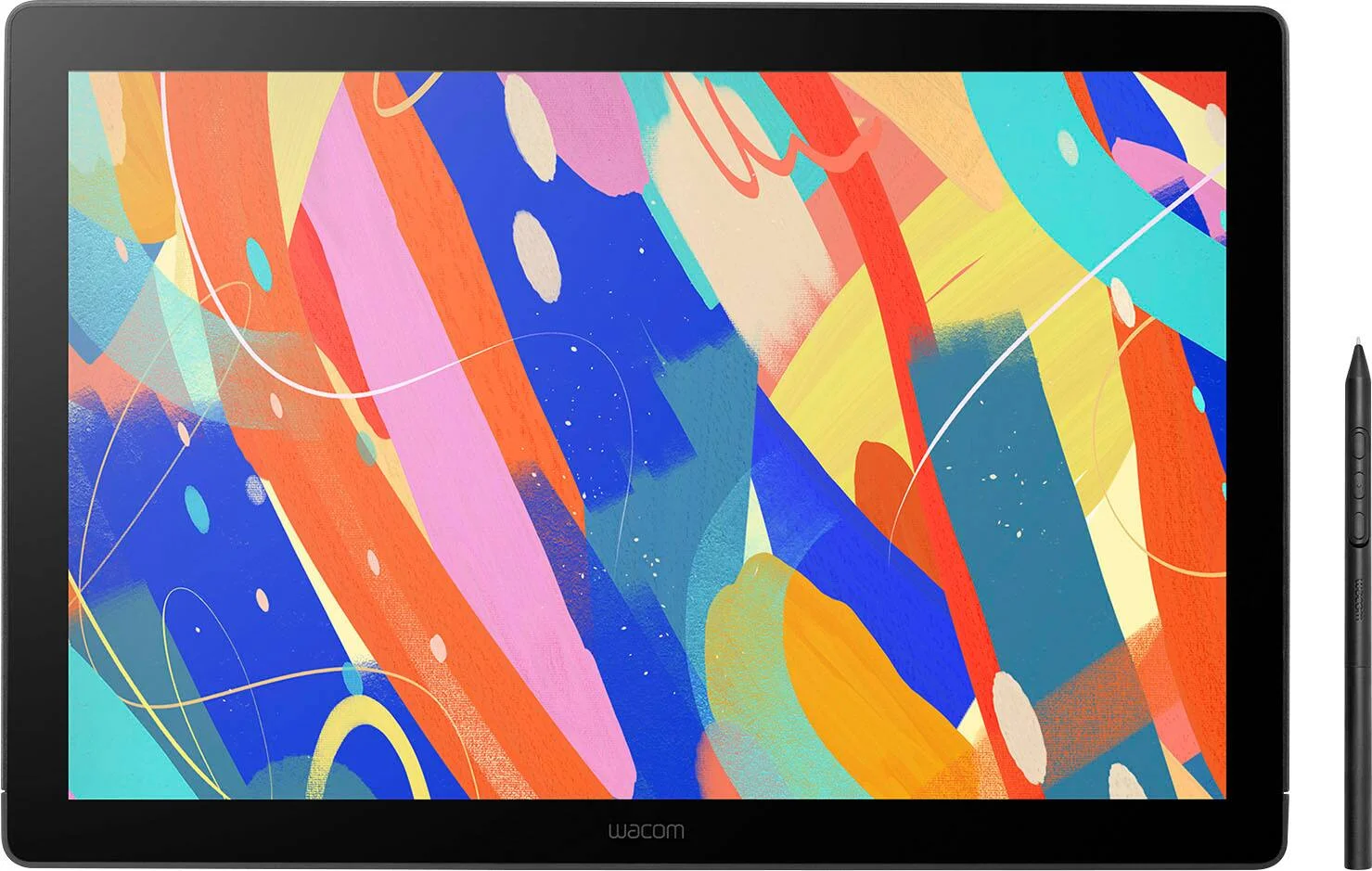
Wacom Cintiq 16 (DTK168K0A) Review (2026): Pen-Only Focus
A look at the Wacom Cintiq 16 (DTK168K0A): a slim, quiet pen display with a bonded etched-glass screen, Pro Pen 3 and wide color coverage, but no touch and no built-in shortcut keys.
Published Oct 28, 2026
Best Tablets for Kids 2026: Rugged, Portable & Long-Lasting
Our guide to the best tablets for kids compares five options on durability, parental controls, battery life, storage and screen size, from rugged Fire Kids models to compact and full-size iPads.
Published Oct 9, 2026