Wacom Intuos Small Bluetooth Review (2026): Beginner Pick
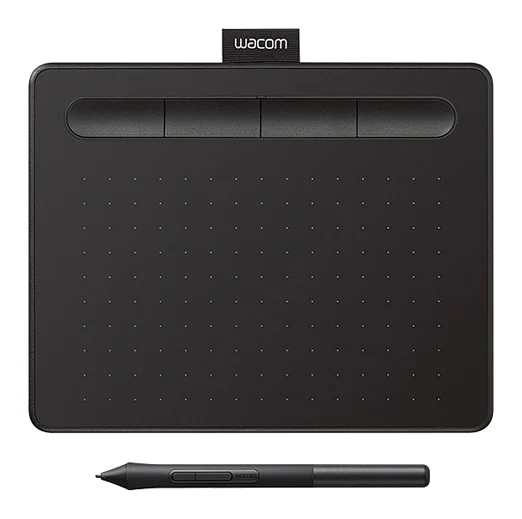
A light, portable starter tablet with a battery-free pen. We look at where the small active area and Bluetooth connection help or hold you back.
Research-based · We earn from qualifying purchases
Our verdict
The Intuos Small is a light, portable and beginner-friendly tablet with a natural-feeling battery-free pen, a good way to start with digital drawing. Serious illustrators who need a roomy canvas or lag-free wireless should look at a larger model or plan to use the USB cable.
The good
- Battery-free pen with 4,096 pressure levels feels natural and responsive
- Slim 8.8 mm body and light weight make it easy to carry
- Works over Bluetooth or USB on Windows, macOS, ChromeOS and Android
- 4 customizable ExpressKeys plus 2 pen buttons for quick shortcuts
- Easy beginner entry point with reliable Wacom drivers
+2 more
- 4 customizable ExpressKeys plus 2 pen buttons for quick shortcuts
- Easy beginner entry point with reliable Wacom drivers
The bad
- Small 152 x 95 mm active area limits serious drawing and painting
- Bluetooth can lag or jitter, so precise work is better over USB
- No multi-touch, and the micro-USB port is dated
- Bundled software is time-limited and registration can be awkward
+1 more
- Bundled software is time-limited and registration can be awkward
If you want to start drawing, retouching photos or annotating on a computer without a big outlay, this Wacom Intuos Small Bluetooth (CTL-4100WL) review is for you. It is Wacom's compact pen tablet: a flat slab you draw on while you watch the result on your monitor. It sits in the mid-range part of the market. Its appeal is simple: a slim body, a pen that needs no battery, and the option of cable or wireless connection. This review is based on manufacturer specs and what independent experts report, not on hands-on testing.
Wacom Intuos Small Bluetooth (CTL-4100WL): specs at a glance
From the manufacturer- Size
- 200 x 160 x 8.8 mm
- Cable
- 1.5 m (4.9 ft) USB Type A to Micro B
- Weight
- 250 g (8.8 oz)
- Wireless
- Bluetooth 4.2
- Active area
- 152 x 95 mm (6.0 x 3.7 in)
- ExpressKeys
- 4 customizable
- Multi-touch
- No
- Report rate
- 133 pps
- Battery life
- 15 hours minimum
- Charging time
- up to 3.5 hours
- Pen resolution
- 2540 lpi (100 lines/mm)
- Pen technology
- Electro-magnetic resonance (battery-free)
- Pen reading height
- 7 mm
- Pen pressure levels
- 4096
Key features
- Battery-free pen with 4,096 pressure levels for a natural drawing feel
- Connect wirelessly over Bluetooth or by USB cable
- 4 customizable ExpressKeys for quick shortcuts
- 2 programmable buttons on the pen
- Slim 8.8 mm body that is easy to carry
- Built-in pen tray and nib compartment in the pen
- Works for right- and left-handed users
- Works with Windows, macOS, ChromeOS and Android
What the Intuos Small is and who it is for
The Intuos Small is a pen tablet, not a pen display. There is no screen in it. You move the pen on the surface and the cursor or brush follows on your computer. That takes a little adjustment for anyone who has only drawn on paper, but it is how most entry-level graphics tablets work, and it keeps the device slim, light and simple.
It suits beginners who want a portable, entry-level way into digital drawing. It also suits people who want a more natural input device than a mouse for editing, note-taking or sketching. It is a weaker fit for professional illustrators who need a large canvas, as the next sections explain.
Design and build
The tablet measures 200 x 160 x 8.8 mm and weighs 250 g (8.8 oz). That is slim enough to slide into a laptop bag or a backpack pocket. Reviewers consistently praise how easy it is to carry, and the numbers back that up. You can take it to a café or a lecture without making a decision about whether it is worth the bulk.
The body is symmetrical in use, and Wacom says it works for right- and left-handed users. A built-in pen tray keeps the pen with the tablet, and the pen has a compartment for spare nibs. Those are small touches, but they matter for a device you move around, because loose pens and nibs are easy to lose.
The cable is a 1.5 m (4.9 ft) USB Type A to Micro B lead. A common criticism is that the micro-USB port feels dated. It works, but it is not the connector you will find on most current devices, so you will want to keep that cable with the tablet.
The pen and drawing feel
The pen uses electro-magnetic resonance technology, which means it is battery-free. There is nothing to charge or replace in the pen itself, so it is ready whenever you pick it up. It offers 4,096 pressure levels. In practice, this means the line can vary smoothly from light to heavy as you press harder, which is what gives digital sketching a more natural feel than a simple on/off stylus. Reviewers praise the pen as natural and responsive.
Other pen specs give a sense of what to expect:
- Pen resolution: 2540 lpi (100 lines/mm), which describes how finely the tablet can track the pen position.
- Pen reading height: 7 mm, so the tablet picks up the pen slightly above the surface and the cursor can follow before you touch down.
- Report rate: 133 pps, the number of position updates per second.
The pen also has 2 programmable buttons. Common uses are right-click, undo or switching tools, though what you assign is up to you in the driver settings.
Active area: the main limitation
The active area is 152 x 95 mm (6.0 x 3.7 in). That is the part of the surface that responds to the pen, and reviewers say its small size limits serious drawing and painting. On a small tablet, a large movement on your monitor needs only a small movement of the pen, and broad, sweeping strokes can feel cramped.
The compact 200 x 160 mm body keeps the tablet small and portable, which suits beginners starting out. For larger illustrations, long strokes or detailed painting, you may find yourself zooming and panning more than you would like. If that sounds like you, look at a larger tablet instead of treating this as a starting point you will quickly outgrow.
The tablet also has no multi-touch. It responds to the pen only, so you will not be pinching or swiping on the surface with your fingers.
Connectivity and battery life
The Intuos Small connects by Bluetooth 4.2 or by USB cable. Wacom lists support for Windows, macOS, ChromeOS and Android.
The wireless option is convenient: no cable across the desk, and it is easier to use with a laptop on your knees. The battery is rated at 15 hours minimum, with charging taking up to 3.5 hours.
The caveat is reliability. A common criticism from reviewers is that Bluetooth can lag or jitter. The practical advice is to use the USB cable when precision matters, such as detailed line work or retouching, and keep Bluetooth for lighter tasks like notes, sketching ideas or browsing. Even if you mainly want wireless, expect to use the cable for some work.
Shortcuts and day-to-day use
Four customizable ExpressKeys sit along the tablet. These are physical buttons you can map to the actions you repeat most, such as undo, brush size, zoom or a modifier key. Combined with the 2 pen buttons, you can reach a handful of shortcuts without moving your hand to the keyboard. For beginners, that is a gentle introduction to how drawing tablets speed up a workflow.
Reviewers also point to Wacom's drivers as reliable and the tablet as an easy entry point, which matters when your first experience of a new tool shouldn't involve fighting your settings.
One complaint concerns the bundled software. Reviewers say it is time-limited and that registration can be awkward. Treat it as a trial, not a permanent toolkit. If you plan to keep drawing, think about what software you will use beyond the trial period.
What experts like and what they criticise
The consensus is consistent. Reviewers praise:
- the natural, responsive feel of the battery-free pen with its 4,096 pressure levels
- the slim, light body that is easy to carry
- the range of supported systems and the choice of Bluetooth or USB
- the combination of 4 ExpressKeys and 2 pen buttons
- the reliable Wacom drivers and the easy start for beginners
The common criticisms are equally consistent:
- the small active area limits serious drawing and painting
- Bluetooth can lag or jitter, so precision work is better over USB
- there is no multi-touch and the micro-USB port is dated
- bundled software is time-limited and registration can be awkward
It has also been recommended in 2 independent expert guides, so it is not a one-off pick, though that is a modest number rather than a sweeping endorsement.
Wacom Intuos Small Bluetooth (CTL-4100WL) review: who should buy it
It suits you if:
- you are new to digital drawing and want a low-friction starting point
- portability matters, for example if you work between home, school and cafés
- you want a pen that never needs charging or a battery swap
- you plan to use it for sketching, annotation, notes or light editing
- you want a tablet that works across Windows, macOS, ChromeOS and Android
Consider skipping it if:
- you want to paint or illustrate seriously and need a roomy canvas
- you need lag-free wireless performance for precise work
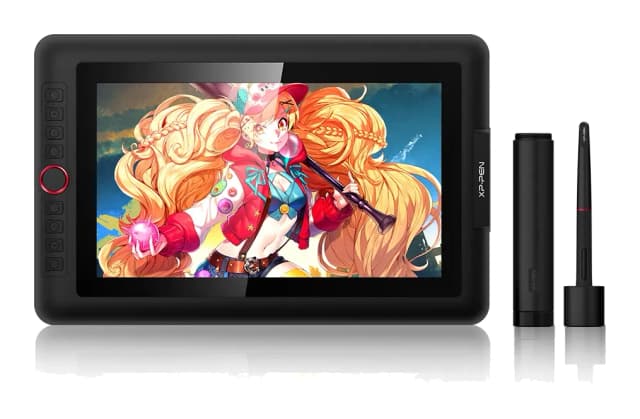
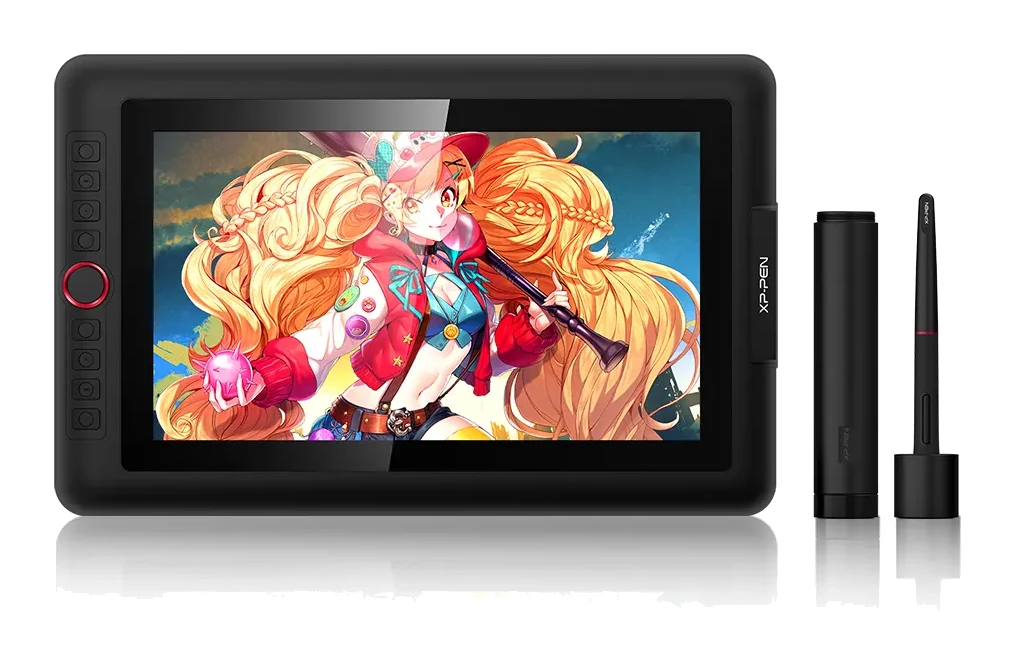
- you want to draw directly on a screen; that is a different category of device, and our XP-Pen Artist 13.3 Pro review covers one example
- you want touch gestures on the surface
How it fits in its category
In general terms, small pen tablets like this trade canvas size for portability and price. Larger tablets give your arm more room, while screen-based displays let you draw directly on the image. The Intuos Small sits at the compact, entry-level end: it is easy to start with and easy to carry, but you accept limits on space and on the polish of the wireless connection. If you are unsure whether digital drawing will stick, that trade is a sensible one. If you already know you will draw for hours every week, the size limit is the thing to weigh most heavily.
Verdict
The Wacom Intuos Small Bluetooth (CTL-4100WL) is a sensible, modest starter tablet. Its strengths are in the basics: a natural-feeling battery-free pen, a slim and light body, useful shortcuts and broad system support. Its weaknesses are just as clear. The active area is small, Bluetooth can be unreliable for precise work, and the micro-USB port and time-limited software feel dated or awkward. Buy it if you are starting out or need something compact and portable, and plan to use the USB cable when accuracy counts. If you already know you need a large canvas, look at a bigger model instead.
Related buying guides
- Best Tablets for Kids 2026: Rugged, Portable & Long-Lasting
- Best Tablet for Drawing in 2026: Pen Pads vs Pen Displays
- Apple iPad mini (A17 Pro) Review (2026): Pocketable Power
- Best E-Ink Writing Tablets 2026: Color, Paper Feel & Value
- Best 3D Printers for Beginners 2026: Easy to Set Up
- Wacom Cintiq 16 (DTK168K0A) Review (2026): Pen-Only Focus
- Amazon Fire HD 8 Kids (2024) Review: Tough First Tablet
Not sure about the Wacom Intuos Small Bluetooth (CTL-4100WL)? Consider these
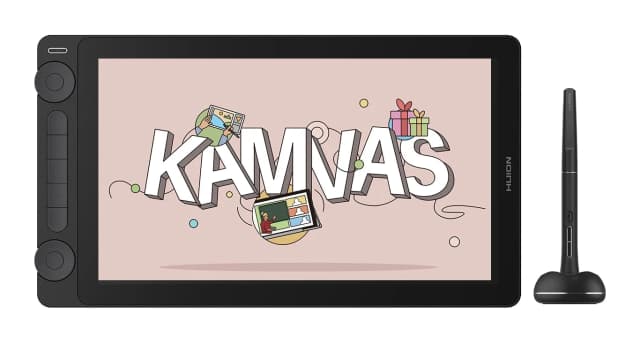
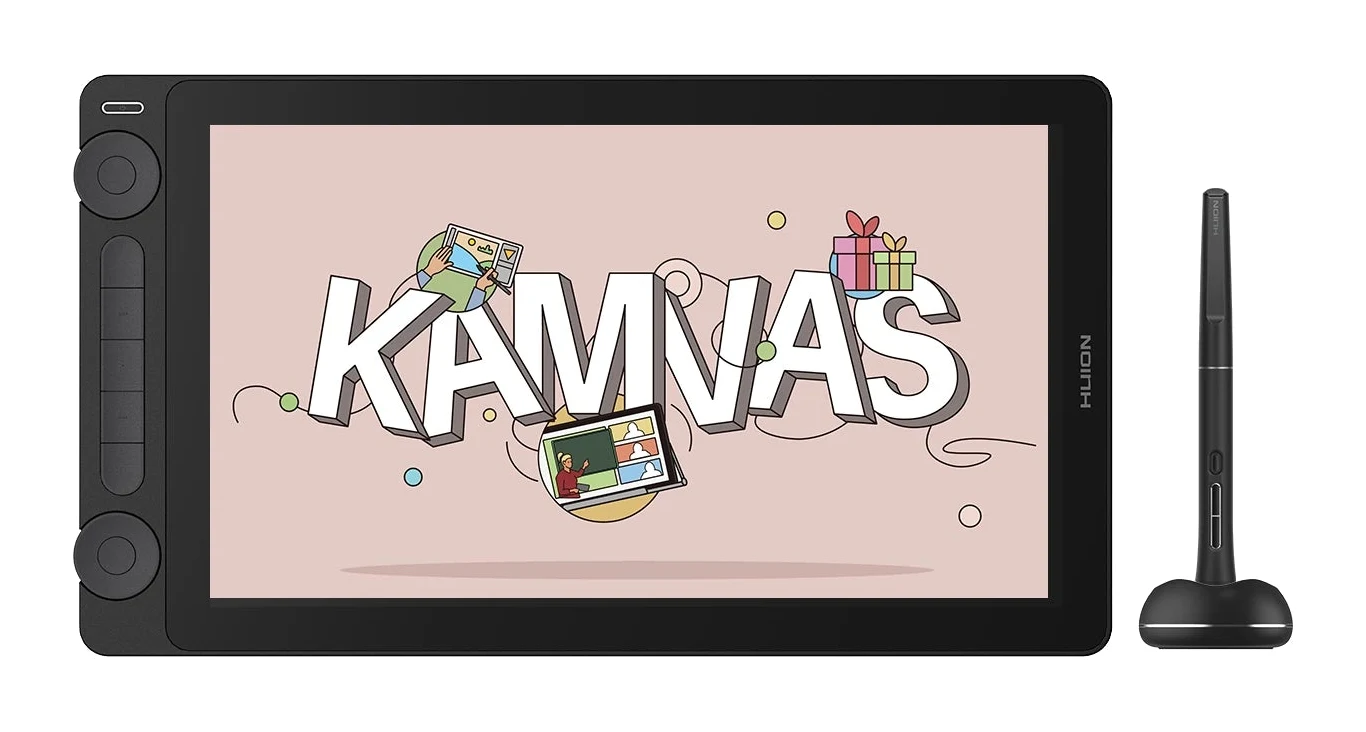
- Best ValueHuion Kamvas 13 Gen 3Why we picked it →
- Best BudgetXP-Pen Artist 13.3 ProWhy we picked it →
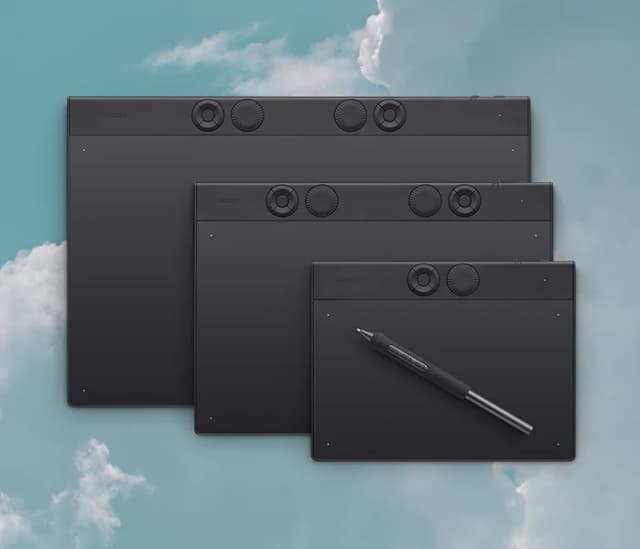
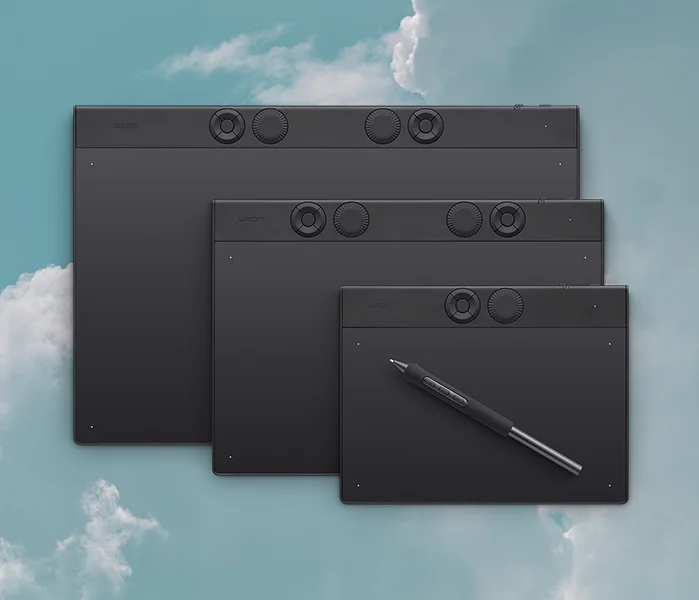
- Also GreatWacom Intuos Pro MediumWhy we picked it →
Frequently asked questions
Is the Wacom Intuos Small Bluetooth worth it?
For beginners who want a portable, entry-level drawing tablet, reviewers consider it a good start, and it has been recommended in 2 expert guides. It is less suited to serious illustration because the active area is small, at 152 x 95 mm.
Does the Wacom Intuos Small (CTL-4100WL) work wirelessly?
Yes. It supports Bluetooth 4.2 and can also connect by USB cable. A common criticism is that Bluetooth can lag or jitter, so for precise work it is better to use the cable.
Which devices and operating systems does it support?
Wacom lists support for Windows, macOS, ChromeOS and Android.
Does the Intuos Small pen need a battery?
No. The pen uses electro-magnetic resonance technology and is battery-free. It offers 4,096 pressure levels and has 2 programmable buttons.
How long does the battery last?
The tablet's battery is rated at 15 hours minimum, and charging takes up to 3.5 hours.
Does it support multi-touch or left-handed use?
It has no multi-touch, so it responds to the pen only. It works for both right- and left-handed users.
Sources
Specs are taken from the manufacturers' official pages; expert recommendations from the publications below.
- Wacom Intuos Small Bluetooth (CTL-4100WL): estore.wacom.com, bhphotovideo.com, wacom.com, manuals.plus
Related reviews & guides
Wacom Cintiq 16 (DTK168K0A) Review (2026): Pen-Only Focus
A look at the Wacom Cintiq 16 (DTK168K0A): a slim, quiet pen display with a bonded etched-glass screen, Pro Pen 3 and wide color coverage, but no touch and no built-in shortcut keys.
Published Oct 28, 2026
Best Tablets for Kids 2026: Rugged, Portable & Long-Lasting
Our guide to the best tablets for kids compares five options on durability, parental controls, battery life, storage and screen size, from rugged Fire Kids models to compact and full-size iPads.
Published Oct 9, 2026Best Tablet for Drawing in 2026: Pen Pads vs Pen Displays
Five drawing tablets from Wacom, Huion and XP-Pen, from a simple pen tablet to a premium pen display, compared on manufacturer specs and expert recommendations.
Published Oct 9, 2026