Huion Kamvas 13 (Gen 3) Review (2026): Beginner-Friendly?
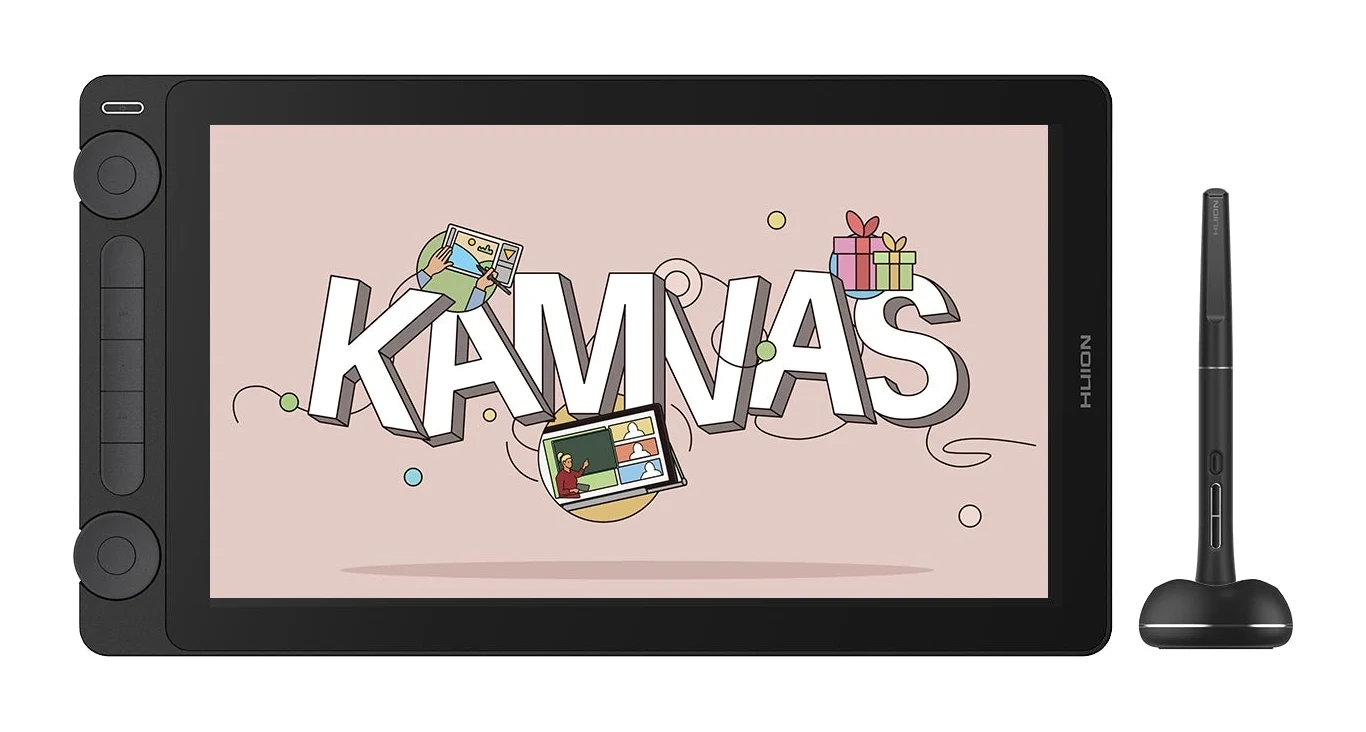
A look at the Huion Kamvas 13 (Gen 3): a light, portable pen display with a paper-like screen, calibrated color and a battery-free pen, plus where it falls short.
Research-based · We earn from qualifying purchases
Our verdict
The Kamvas 13 (Gen 3) is a portable pen display with a natural-feeling screen, an accurate pen and well-calibrated color, which makes it a strong pick for beginners and budget-conscious artists. Skip it if you need touch input, a tail eraser or a higher-resolution display, or if you want a stand and simple cabling without extra purchases.
The good
- Battery-free pen with 16384 pressure levels and low 2g activation force
- Laminated etched anti-glare glass gives a paper-like drawing feel
- Factory-calibrated color with 99% sRGB and 90% Adobe RGB coverage
- Two dials plus 5 press keys speed up shortcuts
- Light 865g, 11.7mm body is easy to carry
+2 more
- Two dials plus 5 press keys speed up shortcuts
- Light 865g, 11.7mm body is easy to carry
The bad
- Resolution is 1920 x 1080 on a 13.3-inch IPS 60Hz panel
- 25ms typical response time can show some lag
- No touch support and the pen has no tail eraser
- Stand is sold separately and the 3-in-1 cable needs external power
+1 more
- Stand is sold separately and the 3-in-1 cable needs external power
If you are moving from a plain pen tablet to drawing directly on a screen, the Huion Kamvas 13 (Gen 3) is one of the more obvious places to start. This Huion Kamvas 13 (Gen 3) review looks at what the manufacturer specs say and what independent experts report, so you can decide whether a compact 13.3" pen display fits how you draw. It is aimed at beginner and budget-minded artists who want something portable, and it sits in the mid-range part of the market.
Huion Kamvas 13 (Gen 3): specs at a glance
From the manufacturer- Pen
- PW600L, PenTech 4.0, 5080 LPI
- Model
- GS1333
- Accuracy
- ±0.3mm (Center), ±2mm (Corner)
- Brightness
- 220nit (Typ.) on huion.com; the Huion store page lists 200nit (Typ.)
- Dimensions
- 361.21 x 202.77 x 11.7mm
- Interfaces
- USB-C (HDMI Signal), Full-featured USB-C (DP Signal)
- Net weight
- 865g
- Panel type
- IPS 60Hz
- Resolution
- 1920 x 1080 (16:9) FHD
- Active area
- 293.8 x 165.2mm
- Screen size
- 13.3" (diagonal)
- Tilt support
- ±60°
- Response time
- 25ms (Typ.)
- Contrast ratio
- 1000:1
- Pressure levels
- 16384 Levels
- Color gamut coverage
- 99% sRGB / 99% Rec.709 / 90% Adobe RGB
Key features
- Fully laminated Canvas Glass 2.0 etched anti-glare screen with a paper-like feel
- PenTech 4.0 battery-free PW600L pen with 16384 pressure levels and 2g initial activation force
- Two dial controllers plus 5 programmable press keys for quick shortcuts
- Factory color calibration (ΔE<1.5) with a calibration report; 99% sRGB, 99% Rec.709, 90% Adobe RGB
- Lightweight 865g body that is 11.7mm thick, easy to carry
- Works with Windows, macOS, Linux and Android; USB-C connection options
- Symmetric layout suits left- and right-handed users
- Can also work as a pen tablet
Design and build: made to be carried
The Kamvas 13 (Gen 3) measures 361.21 x 202.77 x 11.7mm and weighs 865g. That is a light body that is easy to carry. Reviewers repeatedly praise the portability.
The screen is a 13.3" (diagonal) panel with an active area of 293.8 x 165.2mm. That is a compact working area for a desk. Huion gives the display tilt support of ±60°, which helps you find a comfortable drawing angle. The stand, however, is sold separately, so budget for that if you do not want to prop the display on a book or a laptop stand.
The layout is symmetric, so left- and right-handed users can both set it up without fuss. The Kamvas 13 can also work as a pen tablet.
The screen: where the paper-like feel comes from
The most talked-about part of this display is its surface. Huion uses a fully laminated Canvas Glass 2.0 screen with an etched anti-glare finish. Lamination removes the air gap between the glass and the panel, so the pen tip sits close to the line it draws. The etching adds a textured, paper-like feel and cuts reflections. Reviewers consistently single this out as a strength.
Resolution and refresh
The panel is a 13.3-inch IPS 60Hz display with a 1920 x 1080 (16:9) FHD resolution. That is a common criticism: Full HD on a screen this size is serviceable for drawing but will not look as crisp as higher-resolution displays. If fine detail and sharp text matter to you, keep that in mind.
The typical response time is 25ms (Typ.), and reviewers note that it can show some lag. Contrast ratio is listed at 1000:1. As for brightness, Huion's own site lists 220nit (Typ.), while the Huion store page lists 200nit (Typ.).
Color accuracy
Color is a genuine selling point at this level. Each unit is factory-calibrated to ΔE<1.5 and comes with a calibration report. Coverage is 99% sRGB, 99% Rec.709 and 90% Adobe RGB. For digital illustration, web graphics and general creative work that is a solid foundation, and reviewers praise the out-of-the-box accuracy. If you work toward print or wide-gamut workflows, the 90% Adobe RGB figure is worth noting, since it is not full coverage.
The pen: accurate and battery-free
The included PW600L pen uses Huion's PenTech 4.0 and is battery-free, so there is nothing to charge or replace. It supports 16384 pressure levels and has a 2g initial activation force, meaning it registers very light touches. The pen's resolution is listed at 5080 LPI. Accuracy is ±0.3mm at the center and ±2mm at the corner.
Reviewers like the pen's feel and sensitivity. The limitations are that it has no tail eraser, and the display has no touch support. If you rely on pinch-to-zoom or finger gestures, you will need to use the shortcut controls instead.
Shortcuts and controls
The Kamvas 13 (Gen 3) has two dial controllers and 5 programmable press keys. For day-to-day work, that means you can put common actions under your non-pen hand rather than reaching for the keyboard every few seconds. Reviewers praise the dials and press keys for speeding up shortcuts. It is not a full bank of express keys, so heavy shortcut users may still want a keyboard nearby.
Connectivity and compatibility
The Kamvas 13 (Gen 3) works with Windows, macOS, Linux and Android. The interfaces are USB-C (HDMI Signal) and Full-featured USB-C (DP Signal), so the connection you can use depends on your computer's ports.
The less convenient side is the 3-in-1 cable, which needs external power. Reviewers flag this alongside the separately sold stand as the part where the experience asks for a bit more setup than a plug-and-draw device. If your laptop only has ports that fall into that situation, plan for a power source and a bit of cable management.
What experts like and what they criticise
Across published reviews, the Kamvas 13 (Gen 3) averages 8.5/10 from 3 expert scores: MacSources gives it 8.3/10, MacHow2 gives it 81/100 and GameDaily gives it 9/10. It is also recommended in 9 expert buying guides, which is a good indication that it is a regular on shortlists for this kind of product.
What reviewers praise:
- The battery-free pen, with its wide pressure range and light activation force.
- The laminated, etched anti-glare glass and its paper-like feel.
- Factory-calibrated color with strong sRGB coverage and 90% Adobe RGB.
- The two dials and 5 press keys.
- The light, thin body.
What they criticise:
- The 1920 x 1080 resolution on a 13.3-inch IPS 60Hz panel.
- A 25ms typical response time that can show some lag.
- No touch support and no tail eraser on the pen.
- A stand sold separately, and a 3-in-1 cable that needs external power.
These are real limitations, and the verdict advises skipping it if you need touch input, a tail eraser or a higher-resolution display.
Who should buy it, and who should skip it
Buy it if you are a beginner or a budget-conscious artist who wants to draw on a screen for the first time. It also suits anyone who needs something light enough to carry regularly, and anyone who wants a calibrated screen and a sensitive pen without paying for extras they will not use. Its Windows, macOS, Linux and Android support makes it easy to fit around the device you already own, and the symmetric layout works for either hand.
Skip it if you need touch input, a pen with a tail eraser, or a higher-resolution display. Also think twice if you want a complete setup in the box: you will need to buy a stand separately, and the cabling may require extra power depending on your computer. If you work mostly in bright rooms, the modest brightness figure is worth weighing too.
How it fits in its category
The Kamvas 13 (Gen 3) puts its strengths in the things that affect the drawing experience directly: the surface, the pen and the calibrated color. Its weaknesses are in resolution, response time and accessories. That is a sensible balance for a first pen display, and a less natural one for professionals who want the sharpest possible image or touch gestures.
Verdict
The Huion Kamvas 13 (Gen 3) earns its place on shortlists by getting the fundamentals right: a pleasant, paper-like screen, a sensitive battery-free pen and color that has been calibrated before it reaches you. The 8.5/10 expert average reflects that. Its drawbacks, including Full HD resolution, some lag, no touch and extras that cost more, are easy to live with if you know about them going in. For beginners and artists who want a portable pen display, it is a well-judged choice.
Related buying guides
- Best Tablets for Kids 2026: Rugged, Portable & Long-Lasting
- Best Tablet for Drawing in 2026: Pen Pads vs Pen Displays
- Wacom Intuos Small Bluetooth Review (2026): Beginner Pick
- Amazon Fire HD 8 Kids (2024) Review: Tough First Tablet
- Apple iPad mini (A17 Pro) Review (2026): Pocketable Power
- Samsung Galaxy Tab A11+ Review (2026): Years of Updates
- Wacom Cintiq 16 (DTK168K0A) Review (2026): Pen-Only Focus
- XP-Pen Artist 13.3 Pro Review (2026): Laminated but 1080p
Not sure about the Huion Kamvas 13 (Gen 3)? Consider these
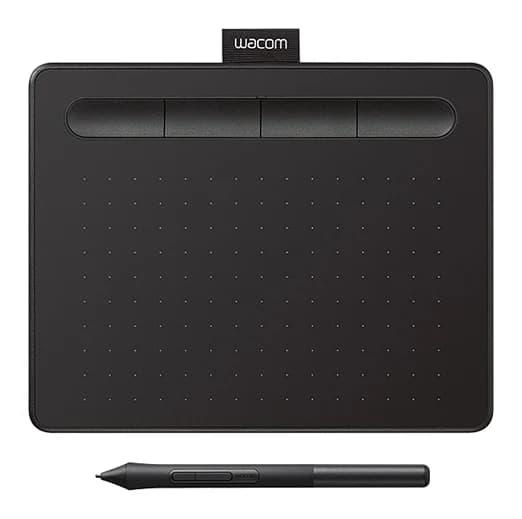
- Best OverallWacom Intuos SmallWhy we picked it →
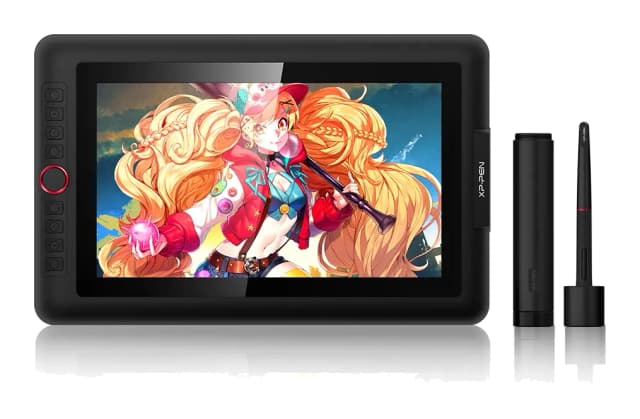
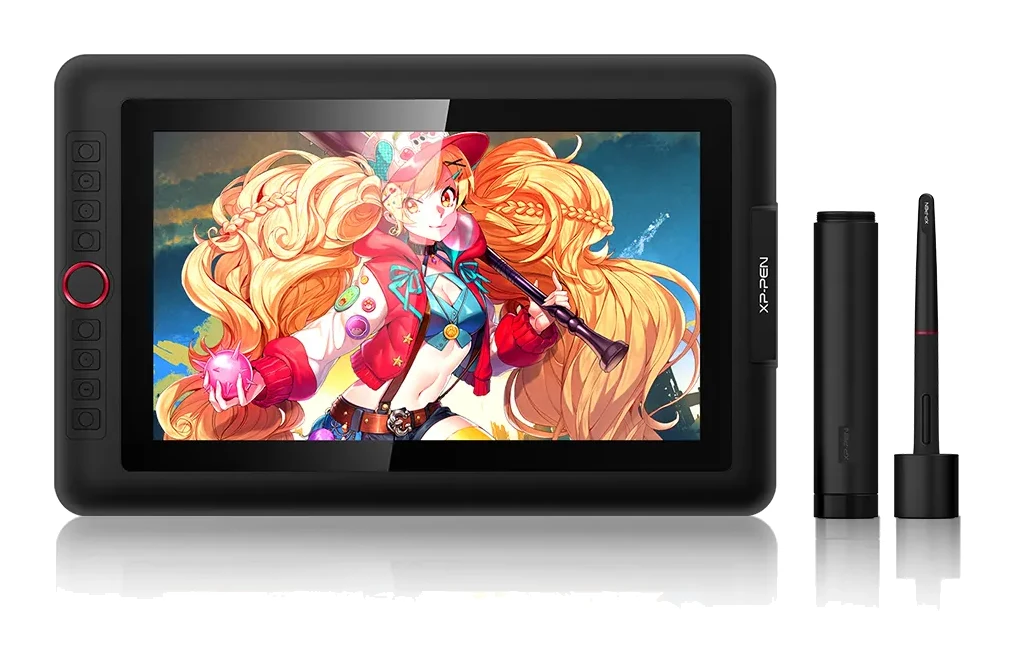
- Best BudgetXP-Pen Artist 13.3 ProWhy we picked it →
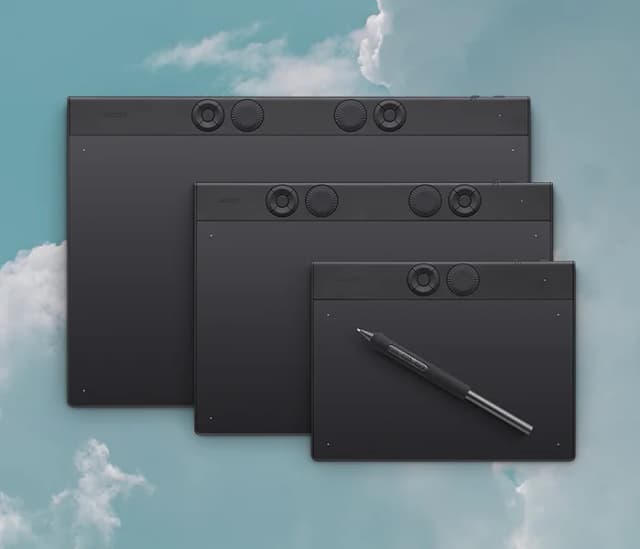
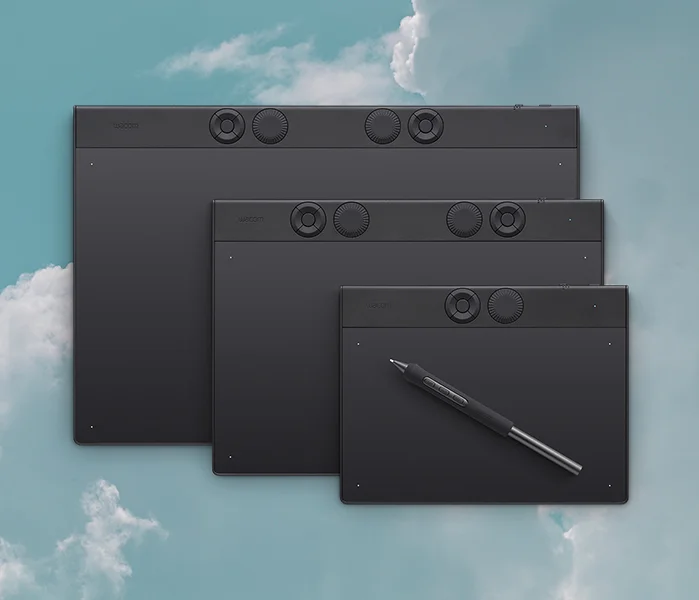
- Also GreatWacom Intuos Pro MediumWhy we picked it →
Frequently asked questions
Is the Huion Kamvas 13 (Gen 3) worth it?
For beginners and budget-conscious artists, experts generally say yes. It averages 8.5/10 across 3 expert scores and is recommended in 9 expert guides. It is less suited to anyone who needs touch input, a pen eraser or a higher-resolution screen.
Does the Huion Kamvas 13 (Gen 3) support touch?
No. Reviewers list the lack of touch support as a drawback, so you will rely on the pen, the two dials and the 5 programmable press keys for navigation and shortcuts.
What computers does the Kamvas 13 (Gen 3) work with?
Huion lists support for Windows, macOS, Linux and Android. It connects via USB-C (HDMI Signal) or Full-featured USB-C (DP Signal), so check which video output your device offers.
Does the Kamvas 13 (Gen 3) come with a stand?
No. The stand is sold separately. The display lists tilt support of ±60°.
Does the pen need charging?
No. The PW600L pen uses PenTech 4.0 and is battery-free. It offers 16384 pressure levels and a 2g initial activation force, but it has no tail eraser.
How accurate are the colors on the Huion Kamvas 13 (Gen 3)?
Each display is factory-calibrated to ΔE<1.5 and comes with a calibration report. Coverage is 99% sRGB, 99% Rec.709 and 90% Adobe RGB, which reviewers praise for creative work.
Sources
Specs are taken from the manufacturers' official pages; expert recommendations from the publications below.
- Huion Kamvas 13 (Gen 3): huion.com, art-is-fun.com, neocamera.com, drawyourweapon.com
Related reviews & guides
Best Tablets for Kids 2026: Rugged, Portable & Long-Lasting
Our guide to the best tablets for kids compares five options on durability, parental controls, battery life, storage and screen size, from rugged Fire Kids models to compact and full-size iPads.
Published Oct 9, 2026
Best Tablet for Drawing in 2026: Pen Pads vs Pen Displays
Five drawing tablets from Wacom, Huion and XP-Pen, from a simple pen tablet to a premium pen display, compared on manufacturer specs and expert recommendations.
Published Oct 9, 2026Wacom Intuos Small Bluetooth Review (2026): Beginner Pick
A light, portable starter tablet with a battery-free pen. We look at where the small active area and Bluetooth connection help or hold you back.
Published Oct 28, 2026